How to set up TeamSpeak 3 for optimal sound levels
Step 1
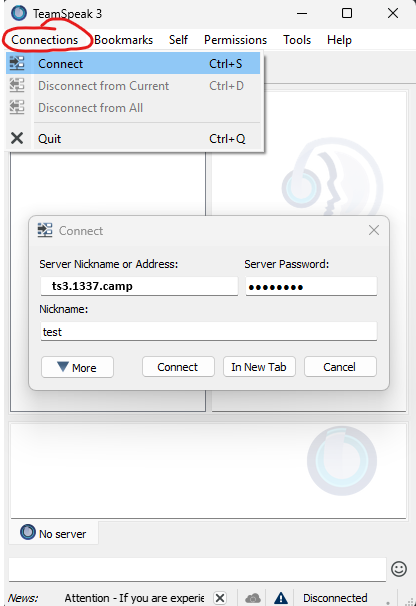
Click on "Connections" and then "Connect". Type in server address: "ts.1337.camp", password: "1337Camp" and your nickname.
Step 2
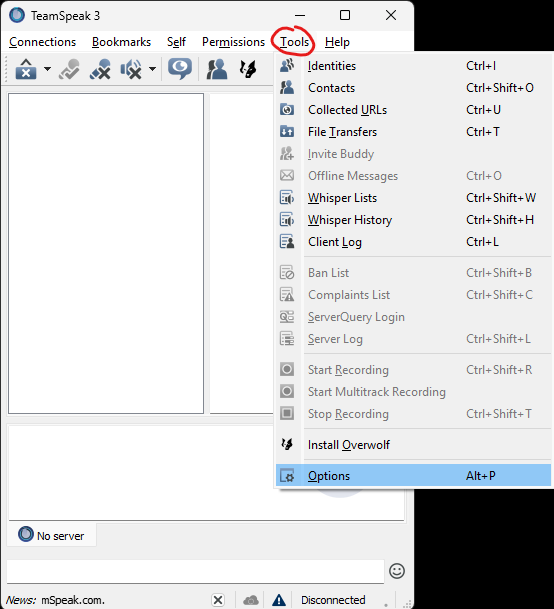
Click on "Tools" in the top menu bar, then select "Options".
Step 3
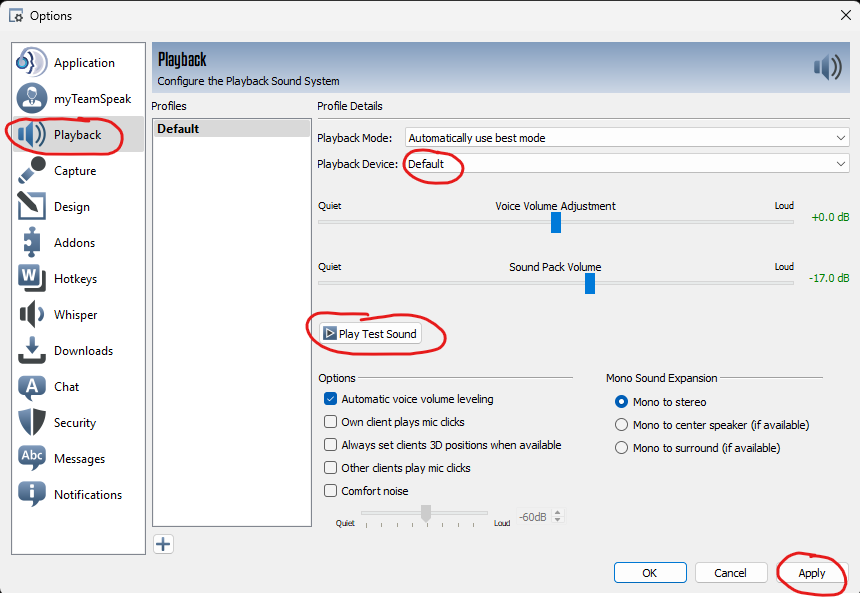
Go to "Playback" tab, select your headphones from dropdown list "Playback Device" and Click "Apply". Click on "Play Test Sound" to ensure that you can hear the test sound through your headphones.
Step 4
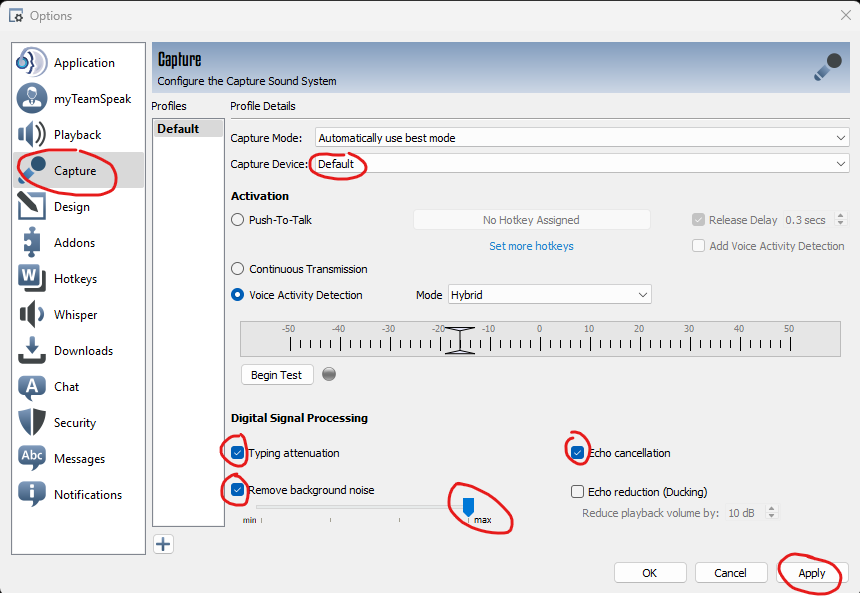
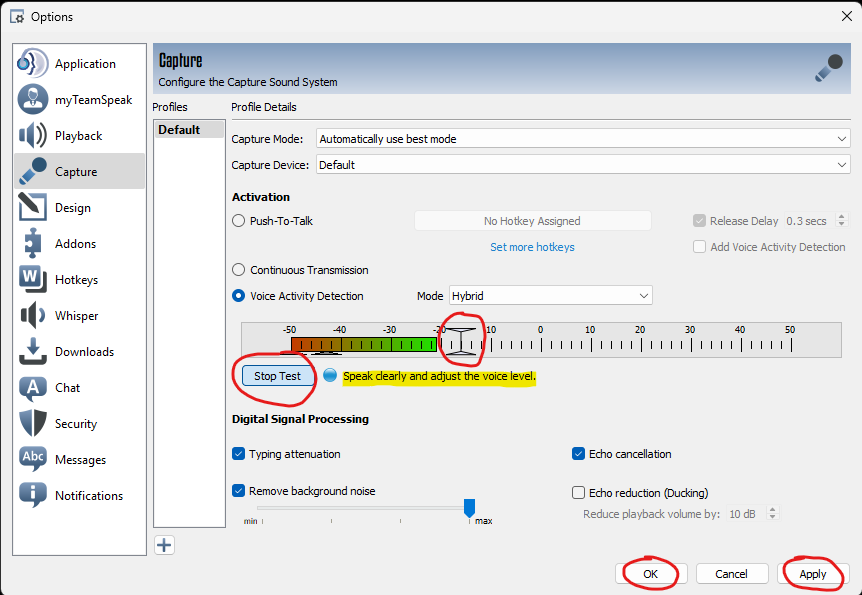
Go to "Capture" tab, select your microphone from dropdown list "Capture Device". Change Mode to "Hybrid". Enable "Typing attenuation", "Echo cancellation", and "Remove background noise" slide to "max". Click on "Apply".
Step 5
Click on "Begin Test", adjust the slider to the desired level. Start with the default setting, and then test it. Move the slider to the left to make the microphone more sensitive (this will pick up softer sounds, including your voice at a lower volume). Move the slider to the right to make the microphone less sensitive (this will ignore softer sounds, but could cut off your voice if you're speaking too quietly). The light next to "Speak clearly and adjust the voice level" should only activate when speaking. Click "Apply" and "OK".

Step 6
Good Example: Your microphone picks up your voice clearly, but does not pick up background noise such as keyboard typing, breathing, or other people's voices in the vicinity. Bad Example: The microphone picks up unwanted sounds, like keyboard typing, mouse clicks, or ambient noise. The microphone does not pick up your voice clearly, especially when you speak at a lower volume or more softly.